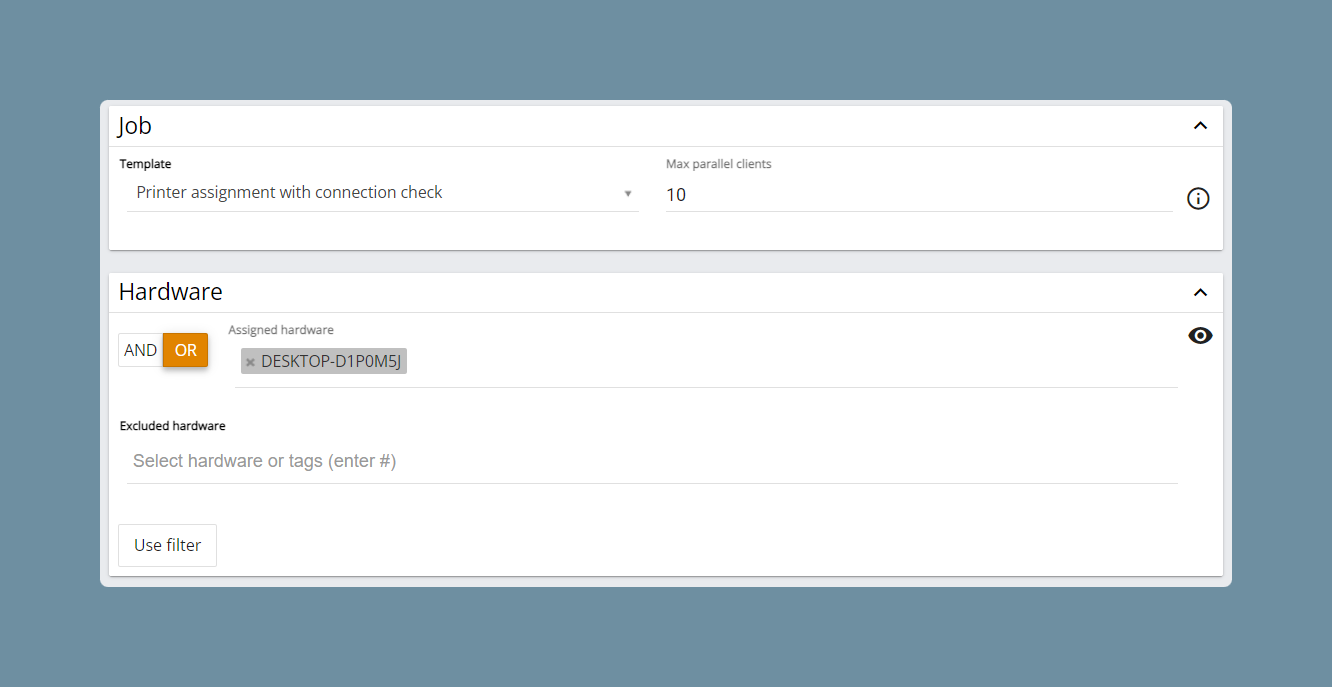
In order to automatically assign printer shares, you have to create a policy.
To start, go to Automations - Templates - Template Library. XEOX provides you with two templates:
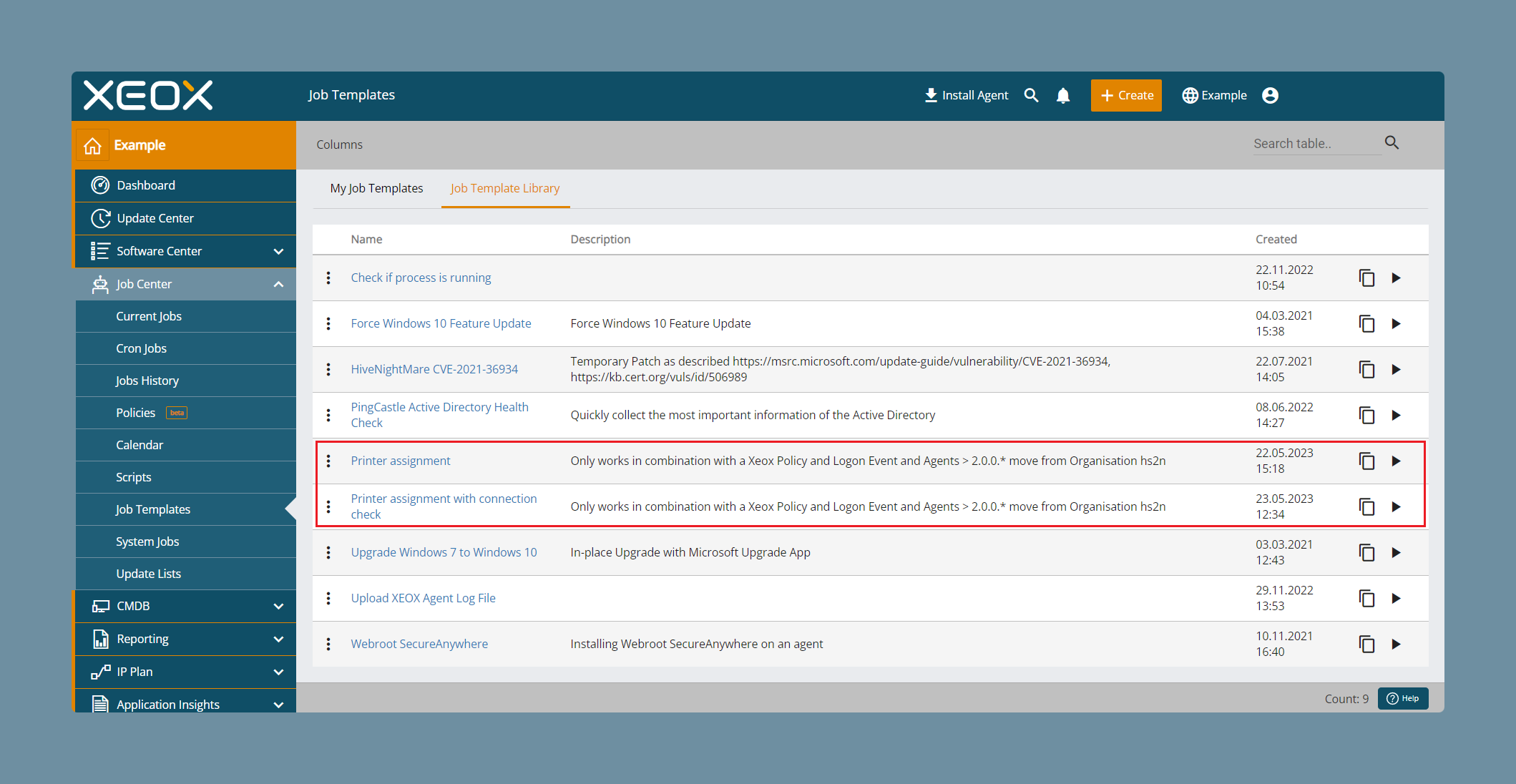
- Printer assignment
Just tries to connect to the printer.
- Printer assignment with connection check
Makes a ping on the print server beforehand and if this is not available, it doesn’t make an assignment.
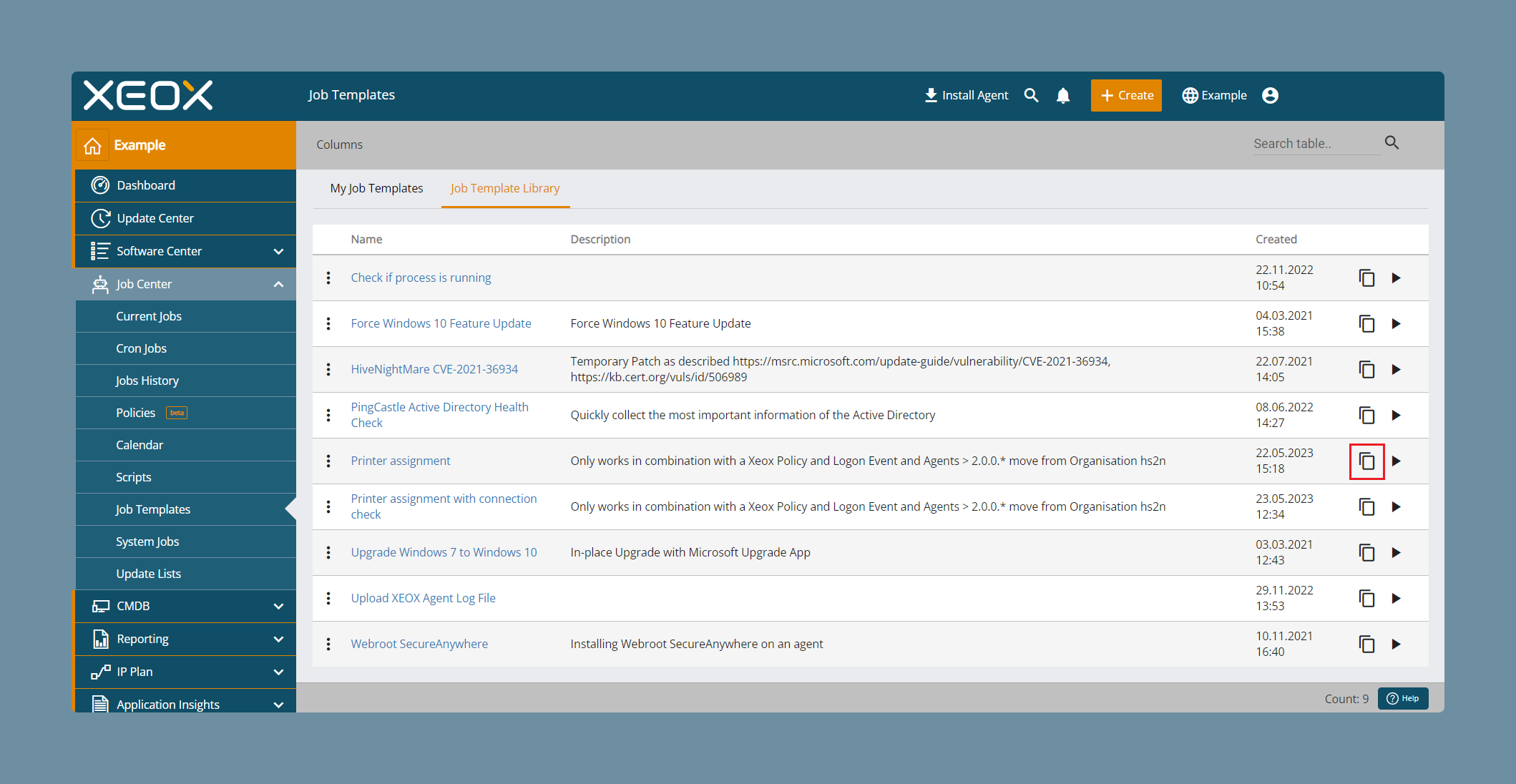
Copy the template you want to use to your own library, by clicking on the copy button. You need to copy it for the next step.
All agent versions need to be > 2.0.0.47
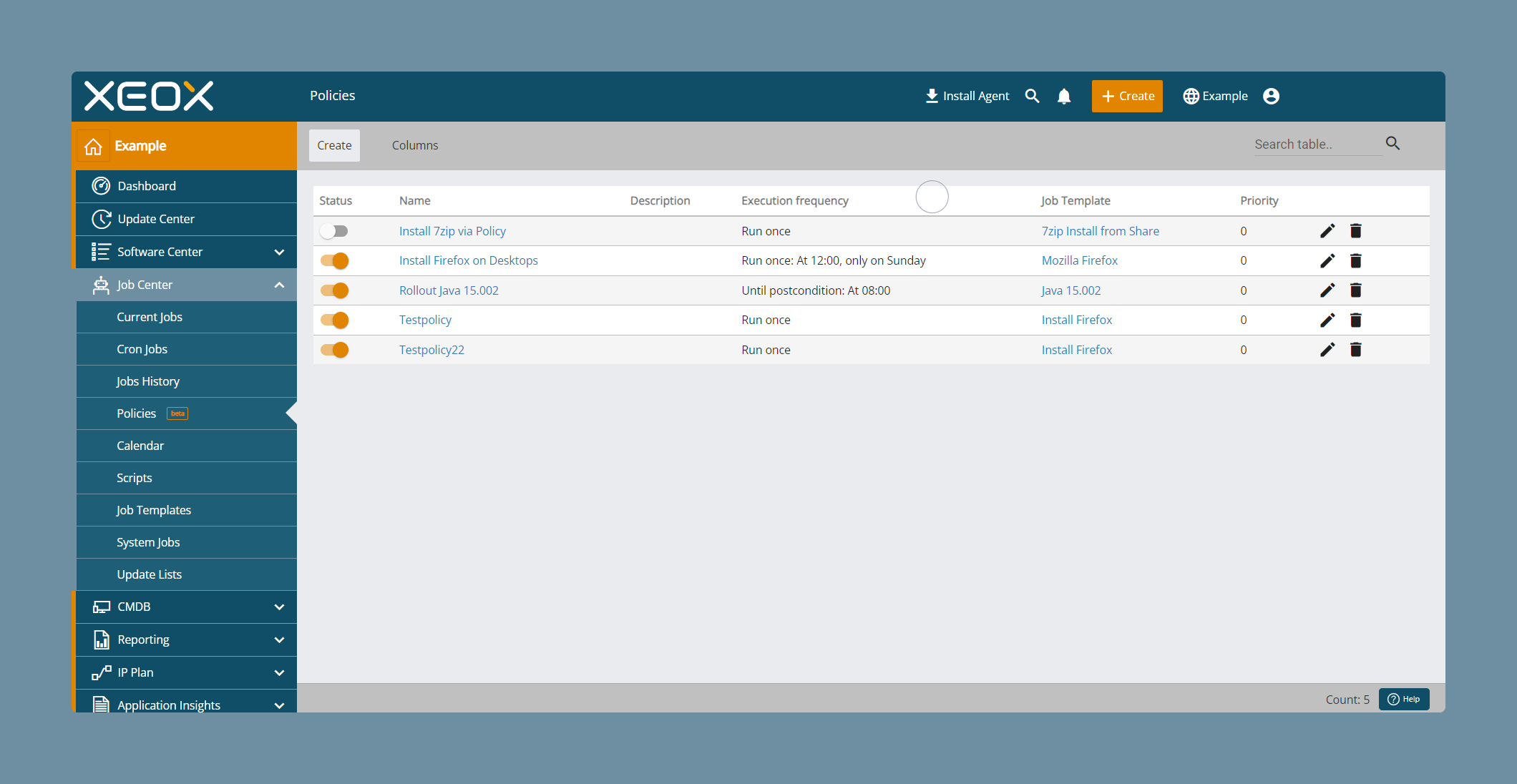
Now you have to access Automations - Policies and click on the Create button.
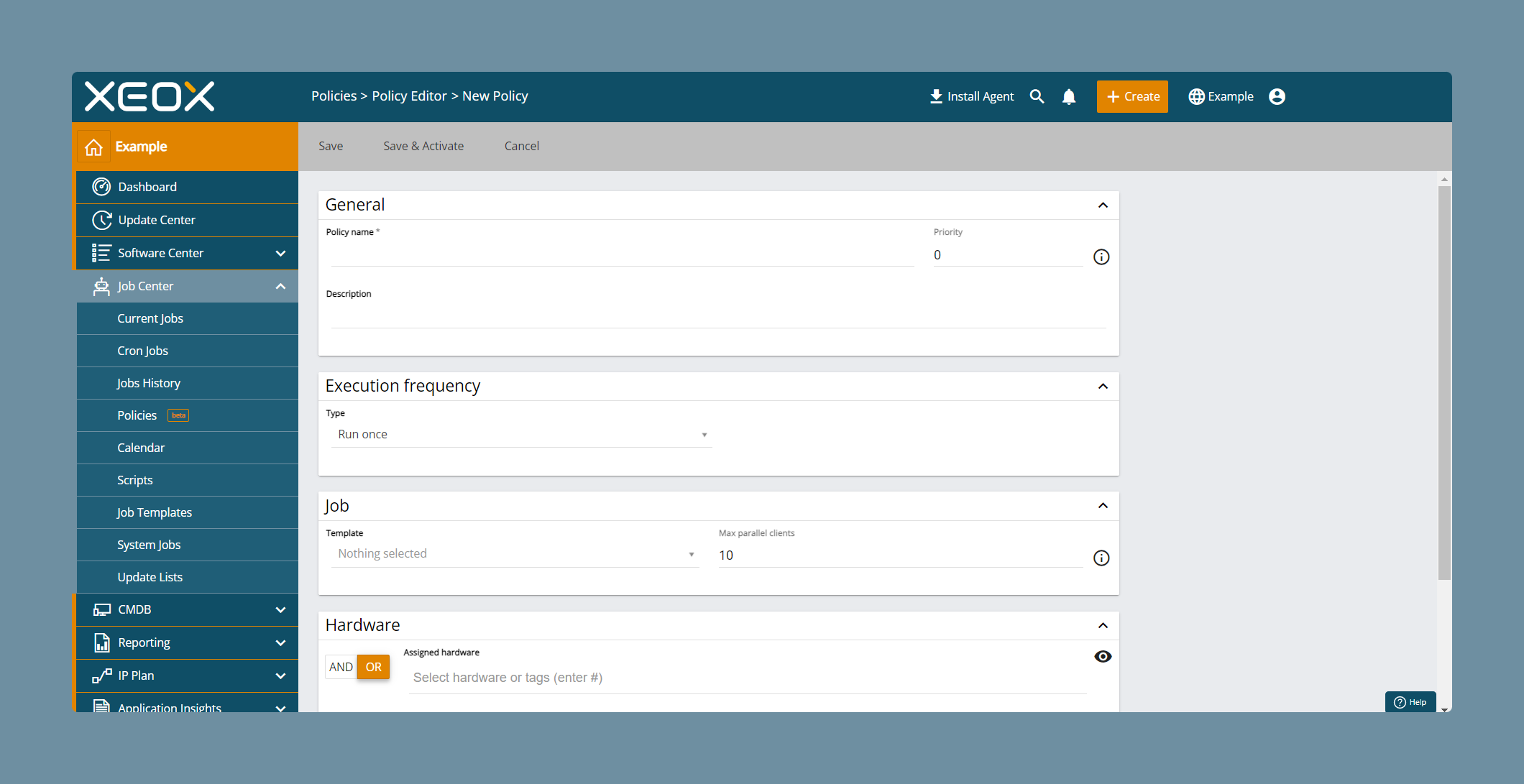
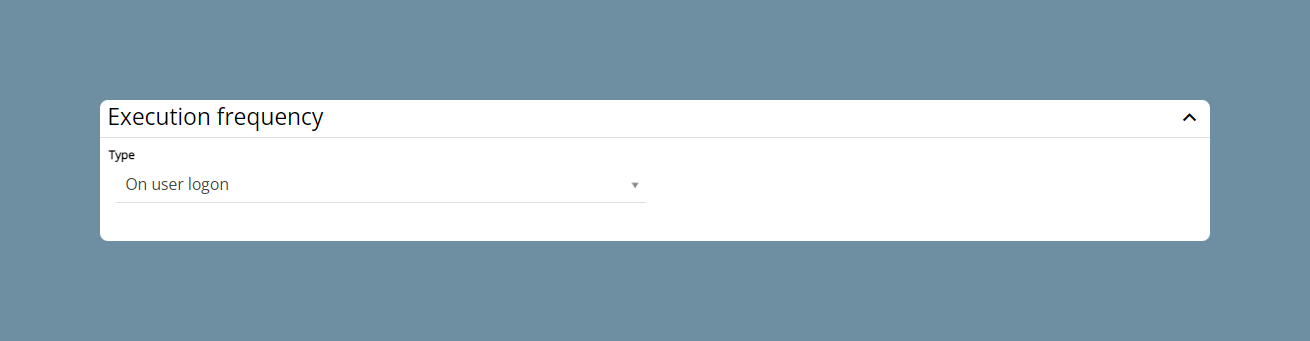
Ensure that you select On user logon in the Execution Frequency section while setting up the policy. This will guarantee that whenever a user logs in to the device, a logon user event is generated. This event verifies the presence of an appropriate policy, and if found, an automation is automatically generated using the template and executed on the device.
Lastly select the template and hardware you want to use.
You can only select templates that you have copied to your own template library.